by Screens PeoPle
Share
by Screens PeoPle
Share
Top 20 questions asked about laptop screen
People run into all kinds of issues and questions regarding their laptop screens, ranging from accidental damage to display calibrations.
The top 20 most frequently asked questions about laptop screens are categorized below by tech support volume, search trends, and common user frustrations.
🛠️ Damage, Repair, & Replacement
1. How much does it cost to fix a cracked laptop screen?
Depending on the brand, touchscreen capabilities, and resolution, a replacement typically ranges from $100 to $300 for standard laptops, while premium models (like MacBooks or high-end gaming rigs) can cost $400 to $800+.
2. Can a cracked laptop screen be fixed without replacing it?
No. Once the glass or the internal liquid crystal display (LCD) layer physically cracks, it cannot bleed back together or be sealed. The entire display panel assembly must be replaced.
3. How do I find the exact replacement part number for my screen?
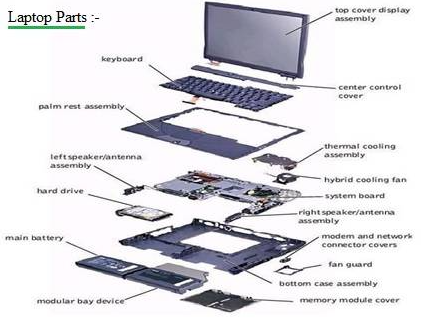
The most reliable method is to disassemble the laptop display bezel and look at the sticker on the back of the bare LCD panel. It will feature a manufacturer code (e.g., LP156WF6).
4. Is it easy to replace a laptop screen yourself?
For standard non-touch laptops, it is highly doable. It generally involves powering down, removing a plastic bezel, unscrewing the panel, and carefully detaching a fragile 30-pin or 40-pin video cable. MacBooks and glued glass touchscreens are much harder and usually require professional repair.
🎛️ Troubleshooting Common Display Issues
5. Why is my laptop screen black but the keyboard lights are on?
This often indicates the laptop is failing to POST (Power On Self Test). Common culprits include a stuck sleep mode, bad RAM modules, a loose internal display cable, or a failing motherboard.
6. What causes vertical or horizontal lines on a laptop screen?
Lines usually narrow down to two issues: a failing graphics processor/driver, or physical damage to the display panel ribbon cables. If the lines change when you tilt the lid, it is a physical hardware issue.
7. How do I fix a flickering laptop screen?
Flickering is frequently caused by incompatible display drivers or an incorrect screen refresh rate. Update your graphics drivers via Windows Update or the manufacturer’s site, and ensure your refresh rate matches your panel’s spec (e.g., 60Hz).
8. What is the difference between a dead pixel and a stuck pixel?
-
Stuck Pixel: Intensely colored (red, green, or blue). These can sometimes be revived using software utilities that cycle colors rapidly.
-
Dead Pixel: Completely black or white due to a dead transistor. These rarely ever fix themselves.
9. Why does my laptop screen look dim even at full brightness?
This is typically a failing backlight or an aggressive power-saving feature. Try turning off “Adaptive Brightness” in your OS settings. If that fails, the internal hardware inverter or backlight strip might be failing.
🧹 Maintenance & Care
10. What is the safest way to clean a laptop screen?
Turn off the device. Use a clean, dry microfiber cloth to gently wipe away dust. For smudges, slightly dampen the cloth with distilled water or a 50/50 mix of isopropyl alcohol and water.
⚠️ Warning: Never spray liquids directly onto the screen, and never use window cleaners (like Windex), paper towels, or tissues, which can scratch the delicate anti-glive coating.
11. Can keyboard keys scratch or mark the screen when closed?
Yes. Oils from your fingers transfer to the keys, which then rub against the screen under pressure (like inside a backpack). Using a thin microfiber cloth insert between the keyboard and screen when closing it prevents these permanent marks.
⚙️ Settings, Customization, & Optimization
12. How do I change my laptop screen resolution?
-
Windows: Right-click the desktop → Display settings → Display resolution.
-
Mac: Go to System Settings → Displays → Select your preferred scaled resolution.
13. How do I project my laptop screen to a TV or monitor?
The quickest shortcut is pressing Windows Key + P to open the projection menu, allowing you to Duplicate, Extend, or use the Second Screen Only. Mac users can use AirPlay or a direct HDMI/USB-C cable.
14. What is “Screen Bleed” and is it normal?
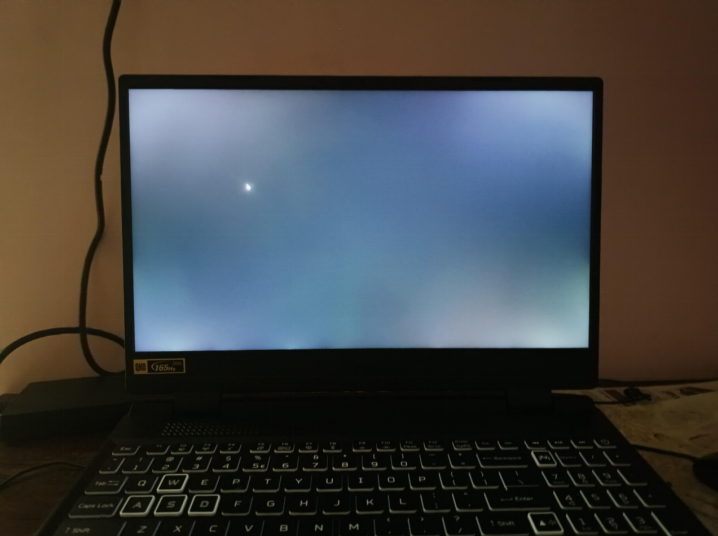
Screen bleed (or IPS glow) looks like patches of light shining through the corners or edges of an LCD panel, mostly visible on an all-black screen in a dark room. Minor bleeding is a normal side effect of how LCD panels are constructed, but severe bleed warrants a warranty claim.
15. How do I enable “Night Light” or Blue Light filters?
To reduce eye strain, look for Night Light in Windows Display Settings or Night Shift on macOS. This shifts the display to a warmer color palette after sunset.
🛒 Buying Specs Explained
16. Matte vs. Glossy screens: Which is better?
-
Matte: Uses an anti-glare coating. Best for working in bright rooms or outdoors, as it diffuses reflections.
-
Glossy: Offers more vibrant colors and deeper blacks, but acts like a mirror under direct lighting.
17. What is the difference between IPS, TN, and OLED laptop screens?
-
TN (Twisted Nematic): Cheap, fast response times, but poor viewing angles and washed-out colors.
-
IPS (In-Plane Switching): Great viewing angles and accurate color reproduction. The gold standard for everyday work and design.
-
OLED (Organic LED): Exceptional contrast (true blacks) and vibrant colors because every pixel illuminates itself, but uses more power and carries a minor burn-in risk.
18. Does a higher refresh rate (120Hz/144Hz) matter for non-gamers?
While gamers benefit most from the reduced motion blur, everyday users will still notice that scrolling through text, dragging windows, and UI animations feel significantly smoother compared to standard 60Hz screens.
19. Is a 4K screen worth it on a 13-inch or 15-inch laptop?
Generally, no. On small displays, the human eye struggles to see the difference between 1440p and 4K at normal viewing distances. 4K panels also drain laptop battery life roughly 20-30% faster than 1080p or 1440p displays.
20. Can I upgrade my laptop screen to a higher resolution or refresh rate?
Sometimes. If your laptop model was sold with multiple screen configurations, you can often swap a 1080p screen for a 1440p one. However, you must verify that your motherboard connector has enough video data lanes (e.g., eDP 30-pin vs 40-pin) to power the upgraded panel.
Are you trying to diagnose or fix a specific problem with your laptop screen right now? Contact us by email now: sales@screens-people.com
STAY IN THE LOOP
Subscribe to our free newsletter.
Leave A Comment
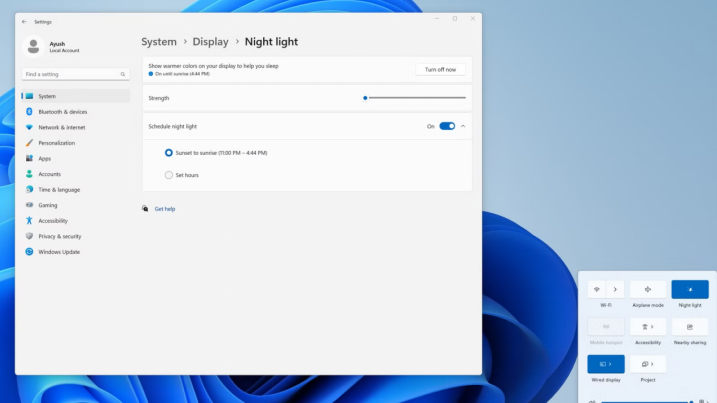
You can enable Night Light or blue light filters in [...]
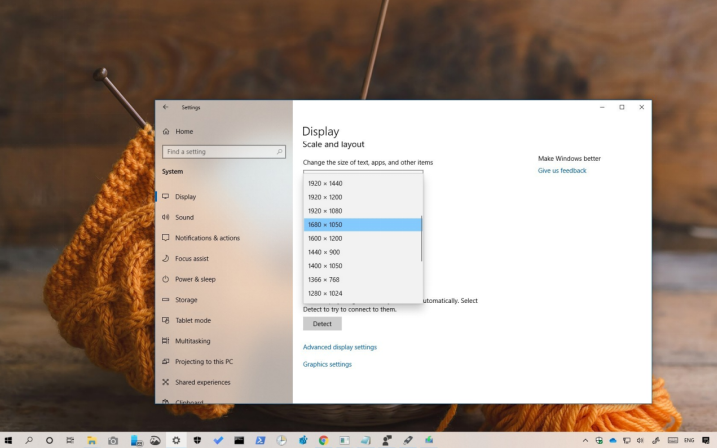
How Do I Change My Laptop Screen Resolution? You can [...]

Can a Cracked Laptop Screen Be Fixed Without Replacing It? [...]