by Screens PeoPle
Share
by Screens PeoPle
Share
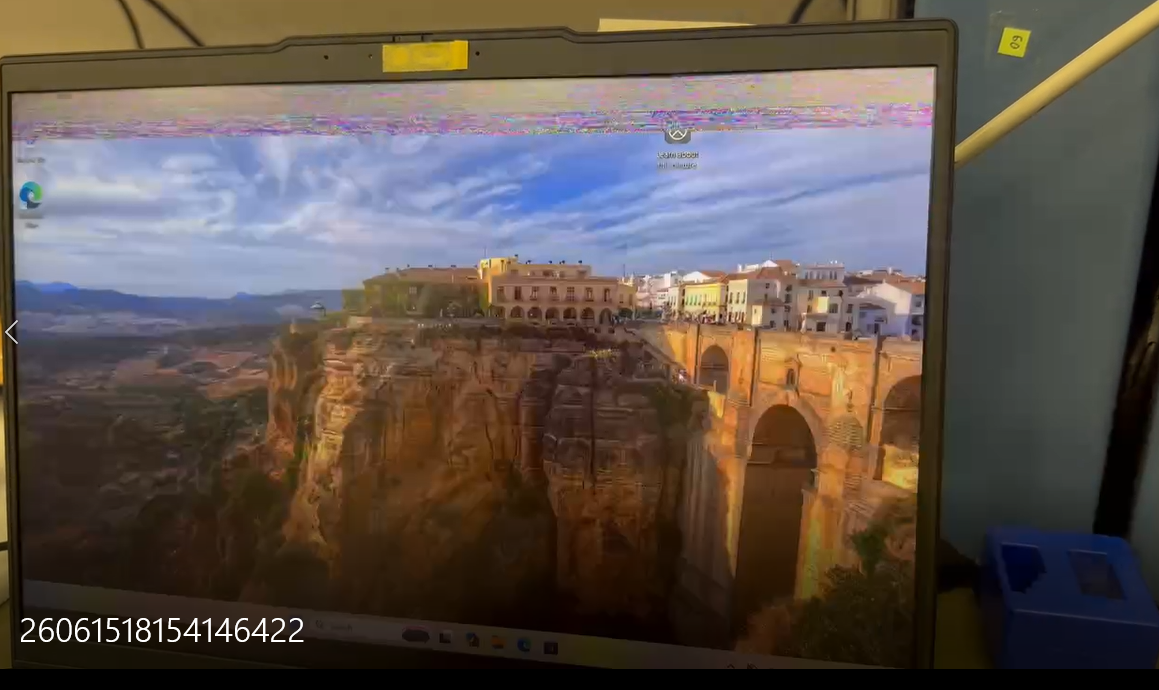
Screen Flickering After Screen Replacement – Troubleshooting Guide
Flickering after a screen replacement doesn’t necessarily mean the new screen is defective. It’s often caused by loose cables, system settings, or graphics drivers. Follow these steps in order, and the issue will likely be resolved.
1. Restart Your Computer (Simplest & Most Effective) If the flickering started after waking from sleep, it’s often because the system didn’t properly recognize the new screen’s resolution. Restart your computer to force the system to reload display settings. This alone often fixes the issue.
2. Check Screen Refresh Rate (Common Cause) A refresh rate set too low can cause visible flickering.
· How to: Right-click on desktop → “Display settings” → “Advanced display settings” → “Choose a refresh rate”
· Recommendation: Select 60Hz or the highest recommended value.
3. Reseat the Screen Cable (Core Hardware Check) This is the most overlooked step after a replacement. If the new screen’s ribbon cable is loose or affected by static electricity, the signal will cut in and out.
· How to: For a desktop, tighten the screws/clips on both ends of the HDMI/VGA/DP cable. For a laptop, you’ll need to open the back cover, unplug the display cable and plug it back in firmly, ensuring the latch is locked.
· Static discharge: Unplug the power cord, then press and hold the power button for 20 seconds to discharge static electricity.
4. Reinstall or Update Graphics Drivers Incompatibility between the new screen and old drivers can cause flickering.
· Go to your laptop or graphics card manufacturer’s official website, download the latest driver for your specific model, and perform a clean installation. Avoid using third-party auto-updater tools.
5. Test with an External Monitor (Pinpoint the Fault) Connect an external monitor:
· If the external monitor also flickers: The problem is with your graphics card or motherboard. You’ll likely need professional repair.
· If the external monitor works fine: The problem is with your new screen or the internal cable. If reseating the cable doesn’t help, the new screen itself may be defective – contact the seller for a replacement.
If none of these steps work, it’s best to take your computer to a repair shop for diagnostic testing.
STAY IN THE LOOP
Subscribe to our free newsletter.
Leave A Comment

Vertical or horizontal lines on a laptop screen happen when [...]

Replacing a laptop screen yourself can be easy or difficult [...]
A 4K screen can be worth it on some 13-inch [...]
You find the exact replacement part number for your screen [...]