by Screens PeoPle
Share
by Screens PeoPle
Share
What Is the Difference Between a Dead Pixel and a Stuck Pixel?
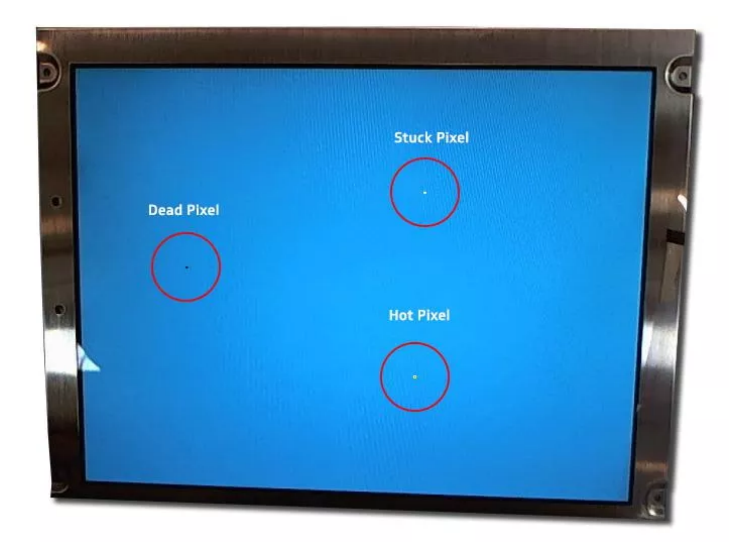
A dead pixel shows up as a black dot because its subpixels produce no light at all, while a stuck pixel shows a constant color because one or more subpixels stay active. Laptop screens and desktop monitors use thousands or millions of small pixels. Each pixel contains 3 subpixels that produce red, green, and blue light.
They produce these colors by controlling liquid crystal material with electrical signals from the driver. When the crystals move correctly, they allow backlight to reach the viewer and form the intended color and brightness at that spot.
A problem develops when 1 pixel or its subpixels stop responding to those signals. The result is a small dot that stays visible on the screen no matter what picture or video plays.
Two frequent forms of this problem exist on laptop screens and desktop monitors, known as dead pixels and stuck pixels. People who encounter these dots benefit from knowing how each one works and what options exist for dealing with them.
What Is a Dead Pixel?
A dead pixel appears as a black dot since its 3 subpixels produce no light. The liquid crystal inside the pixel stays in the state that blocks backlight completely. The transistor that controls voltage in the pixel no longer functions at all.
This failure can occur because of a small defect during the layering process, physical pressure or a drop that damaged the structure, or temperature extremes that damaged the internal structure over time.
Once the pixel reaches this condition, it remains black on every type of content. It does not change when the screen shows dark scenes or bright pages, and it does not recover over time. The black spot stays in place for as long as the screen operates.
What Is a Stuck Pixel?
A stuck pixel appears as a colored dot since 1 or more subpixels stay active. The liquid crystal has become fixed in one position and no longer moves. Changes in voltage no longer produce any effect on the light that passes through.
Depending on which subpixel stays on, the dot shows red, green, or blue. It shows white if every subpixel stays active at once.
Stuck pixels can develop from:
- Normal aging of the liquid crystal over time.
- Heat buildup during extended use on the laptop screen.
- Electrical stress in the components of the display panel.
Some of these pixels return to normal function after the screen warms up or after the user takes steps to encourage crystal movement. Others stay in the stuck state permanently without any change.
What Are the Key Differences Between Dead and Stuck Pixels?
The most noticeable difference appears in the color of the dot on the screen. Dead pixels always show black because they emit no light at all. Stuck pixels show a constant color that stands out on most backgrounds clearly.
When a user displays a black test image, both types show up as dots. When the user switches to a white test image, the dead pixel stays black, while the stuck pixel may blend into the background or continue to show its color.
During everyday use, a dead pixel creates a dark spot that never matches the content, while a stuck pixel creates a colored spot that stays the same color always. These consistent behaviors help users recognize which problem exists and guide them toward the appropriate next steps.
What Causes Pixel Problems?
Both types of pixel failure share common origins in screen production and use.
Manufacturing Defects
During manufacturing, tiny imperfections in layer alignment or liquid crystal application can leave a pixel unable to work or operate from day 1.
Physical and Electrical Stress
After the screen enters service:
- Bumps or pressure can break connections in the pixel.
- Tight laptop closures or accidental pressure on the display surface can damage crystal cells inside it.
- Prolonged exposure to high brightness creates heat that affects materials inside the pixels.
- Power fluctuations from the laptop power supply can stress the control electronics.
Dead pixels typically result from physical or electrical failure that leaves the pixel unresponsive. Stuck pixels often result from conditions that affect only the crystal movement ability, and these conditions sometimes allow for later recovery of the pixel function.
How Do You Identify the Type of Pixel Problem?
Users can determine the type of pixel through simple visual checks at home.
- Open a full-screen black image on the display for the test.
- Look for any dots that stand out in a dimly lit room.
- Repeat the check with full-screen images in solid red, green, blue, and white.
- View each color for 1 to 2 minutes to account for any temporary warming effects.
A pixel that remains black through every test, never activating any of its 3 subpixels, is dead. A pixel that shows color on at least 1 test background, appearing bright on black but changing appearance on other colors, is stuck. The test works because it pushes subpixels to their extreme states, revealing whether they respond or remain fixed.
What Are the Repair Options for Each Type of Problem?
Fixing Stuck Pixels
Stuck pixels sometimes return to normal when users apply methods that promote movement.
- Software cycling:One approach uses software that rapidly changes colors and patterns across the screen, running for several hours to encourage change. The shifting voltages can free a crystal that has become temporarily stuck.
- Pressure massage:Another approach involves turning the screen off, covering the spot with a cloth, and applying light pressure while a bright image displays underneath. The gentle force can reposition the crystal enough for it to respond once power returns.
Both techniques require caution because excessive pressure or use can damage the screen further.
Fixing Dead Pixels
Dead pixels almost never improve with these methods. The control hardware or crystal suffers irreversible damage in cases of dead pixels. The only way to remove a dead pixel permanently involves replacement of the LCD panel.
When Should You Replace the Screen?
The choice to replace a screen depends on the number of faulty pixels present, their location, and the impact on regular use. A single pixel near the corner may remain unnoticed during most tasks, while several pixels or 1 in the center can interfere with reading, video playback, or graphic work.
Laptop owners should check warranty coverage first before making any decision on repair.
- Many policies include screen replacement for a set number of dead or stuck pixels.
- This coverage applies during the 1 to 2 years after purchase of the device.
When the warranty period has passed, or when defects do not meet the free repair threshold set by makers, owners can buy a new panel that matches the original specifications of the old one. Replacement restores clear and consistent image quality without distracting dots on the screen.
Conclusion
Dead pixels and stuck pixels both create small fixed spots on laptop and monitor screens, but they differ in important ways. Dead pixels stay black because their 3 subpixels produce no light at all. Stuck pixels stay one color because their subpixels remain active all the time.
Tests that use solid color backgrounds reveal which type exists on a given screen. Methods that cycle colors or apply pressure sometimes fix stuck pixels, but dead pixels require panel replacement to remove the black spot.
When replacement becomes the chosen solution, owners need quality parts that fit their specific laptop model. Screens People provides replacement laptop LCD screens for numerous brands and sizes. Users can visit their site and select the screen that fits their device perfectly to restore full performance after the replacement is done.
STAY IN THE LOOP
Subscribe to our free newsletter.
Leave A Comment
How Much Does It Cost to Fix a Cracked Laptop [...]

Can I Upgrade My Laptop Screen to a Higher Resolution [...]
Can Keyboard Keys Scratch or Mark the Screen When Closed? [...]