by Screens PeoPle
Share
by Screens PeoPle
Share
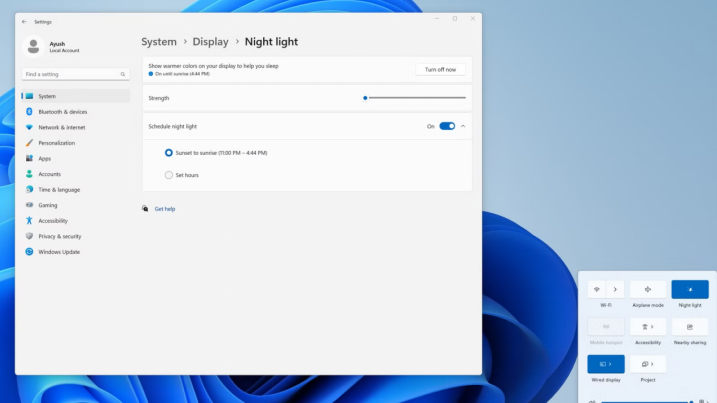
You can enable Night Light or blue light filters in your laptop display settings. These features make the screen warmer by reducing blue tones during evening use. They can improve comfort, but they do not replace proper brightness and breaks.
What Does Night Light Do?
Night Light changes the screen color from cool blue to warmer yellow tones. This warmer look can feel easier on the eyes in dark rooms.
The feature does not remove all blue light from the display. It changes the color balance so white areas look softer at night.
Night Light can make photos, videos, and design work look less color accurate. Turn it off when you need correct color for visual work.
How Do You Enable Night Light on Windows?
On Windows, open Settings, choose System, and then choose Display. Find Night Light and turn it on with the switch.
Open Night Light settings to set the strength and schedule. You can choose sunset to sunrise or set your own hours.
Use a mild strength first because strong warmth can make colors look strange. Adjust it until white pages feel comfortable without becoming deep orange.
How Do You Enable Night Shift on macOS?
On macOS, open System Settings, choose Displays, and then choose Night Shift. Select a schedule, color temperature, and manual setting if needed.
Warmer settings reduce more blue tone, but they also change color accuracy. Use less warmth if you read, browse, and write during evening hours.
Night Shift works on supported Mac displays and many external displays. If an external display does not change, check the cable and display support.
What About ChromeOS and Linux?
On ChromeOS, open Settings, choose Device, and then choose Displays. Turn on Night Light and set the color temperature or schedule.
Linux options depend on the desktop system, such as GNOME, KDE, or Ubuntu. Most modern systems include a Night Light or Night Color setting.
Third-party apps can also add blue light filters when built-in options are limited. Use trusted software, and avoid tools that add ads or unwanted changes.
How Should You Use Blue Light Filters Well?
Blue light filters work best with sensible brightness and room lighting. A warm screen can still strain your eyes if brightness is too high.
- Lower brightness to match the light in your room.
- Use a schedule so the filter turns on before bedtime.
- Keep color work outside the hours when the filter runs.
- Take short breaks during long reading or screen sessions.
If your screen flickers, looks uneven, or causes discomfort, check other causes. Night Light will not fix a damaged panel, poor brightness control, or glare.
What Other Settings Can Improve Comfort?
Brightness, contrast, text size, and room light can affect comfort more than color. Night Light works better when these settings also match your environment.
Raise text size if you lean forward to read normal pages. Increase browser zoom when websites feel crowded or hard to scan.
Use dark mode only if it feels comfortable for your eyes. Some users prefer dark mode at night, while others read better on light pages.
Clean the screen often because smudges can increase glare and eye strain. A clear screen helps Night Light feel more useful during evening sessions.
Place lamps beside the screen instead of behind it to reduce harsh reflections.
Frequently Asked Questions
Does Night Light Save Battery?
Night Light usually has little effect on battery life by itself. Lower brightness can save more battery than changing the color temperature.
Can Blue Light Filters Help Sleep?
They may help reduce bright blue tones before bedtime for some users. Sleep also depends on brightness, timing, habits, and room lighting.
Why Does My Screen Look Yellow?
A yellow screen often means Night Light, Night Shift, or a similar filter is active. Turn the feature off when you need normal white balance.
Conclusion
Night Light and blue light filters are simple tools for more comfortable evening use. Set a mild warmth level, use a schedule, and keep brightness at a sensible level. If your screen remains harsh because it is damaged, Screens People can help you find replacement laptop screens that suit your model.
STAY IN THE LOOP
Subscribe to our free newsletter.
Leave A Comment
How Do I Change My Laptop Screen Resolution? You can [...]

Can a Cracked Laptop Screen Be Fixed Without Replacing It? [...]
How Much Does It Cost to Fix a Cracked Laptop [...]