by Screens PeoPle
Share
by Screens PeoPle
Share
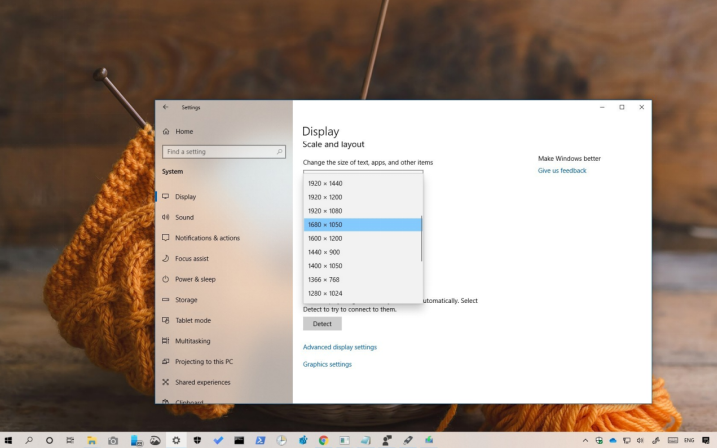
How Do I Change My Laptop Screen Resolution?
You can change your laptop screen resolution through the display settings on your computer. The best choice is usually the recommended or native resolution for your screen. It gives the sharpest text, clear images, and the least display trouble.
What Is Laptop Screen Resolution?
Laptop screen resolution means the number of pixels shown across and down the display. A higher number can show more detail, but it may make items smaller.
Common laptop resolutions include 1366 x 768, 1920 x 1080, 1920 x 1200, and 3840 x 2160. The right setting depends on the screen panel, operating system, and user comfort.
Resolution is different from scaling, even though both affect what you see. Scaling changes the size of text, buttons, and menus without changing pixel count.
How Do You Change Resolution on Windows?
On Windows, open Settings, choose System, and then choose Display. Find Display resolution, open the menu, and select the recommended option.
Windows may ask you to keep or revert the change after the screen updates. Choose Keep changes only when the picture looks clear and fits the screen.
If the screen looks stretched, blurry, or cut off, return to the recommended setting. You can also adjust Scale if text looks too small after changing resolution.
How Do You Change Resolution on macOS?
On macOS, open System Settings, choose Displays, and review the available display options. Select the default option first because macOS matches it to the screen.
If you need more workspace, choose a setting that shows more space. If text looks too small, choose a setting with larger text.
External monitors may show more choices than the built-in laptop screen. The cable, dock, and monitor must support the resolution you want.
Why Does the Recommended Resolution Matter?
The recommended resolution matches the physical pixel layout of the laptop screen. This match keeps text edges sharp and avoids odd image scaling.
Using a lower resolution can make the picture look soft or stretched. It can help with larger text, but scaling usually works better.
A laptop with a replacement screen should still show the correct recommended setting. If it does not, the panel, cable, or driver may not match properly.
When Should You Change Scaling Instead?
Change scaling when the screen is sharp but text feels too small. Scaling keeps the native resolution while making menus and letters easier to read.
On Windows, try common scale levels such as 100%, 125%, or 150%. On macOS, choose larger text or more space from the display options.
Scaling is often the better fix for high-resolution laptop screens. It keeps the image clear while changing the size of items on the desktop.
If an app looks blurry after scaling, close and reopen the app. Older apps may need an update before they handle modern scaling correctly.
What Problems Can Happen After Changing Resolution?
Most problems happen when the chosen resolution does not match the screen or monitor. The picture may look blurry, cropped, too large, or too small.
- Blurry text often means the screen is not using native resolution.
- Missing edges can mean the TV or monitor needs display adjustment.
- Flickering can point to a cable, refresh rate, or driver issue.
- No picture may happen when the screen cannot support the setting.
Wait a few seconds if the display goes black after a setting change. Windows and macOS often revert the setting when you do not confirm it.
Frequently Asked Questions
Should I Use the Highest Resolution Available?
Use the highest resolution only if it matches the screen and feels comfortable. The recommended setting usually gives the best mix of sharpness and usability.
Can Resolution Affect Battery Life?
Resolution can affect battery life, especially on high-resolution screens with bright settings. Higher pixel counts can make the graphics system work harder.
Why Is My Resolution Option Missing?
A missing option can come from an old driver, wrong cable, or unsupported display. It can also happen after installing an incompatible replacement screen.
Conclusion
Changing laptop screen resolution is simple, but the recommended setting is usually best. Adjust scaling before lowering resolution, and check cables or drivers if choices are missing. If your screen no longer supports the right setting, Screens People can help you review laptop LCD screens for a proper replacement.
STAY IN THE LOOP
Subscribe to our free newsletter.
Leave A Comment

Vertical or horizontal lines on a laptop screen happen when [...]

Replacing a laptop screen yourself can be easy or difficult [...]
A 4K screen can be worth it on some 13-inch [...]
You find the exact replacement part number for your screen [...]