by Screens PeoPle
Share
by Screens PeoPle
Share
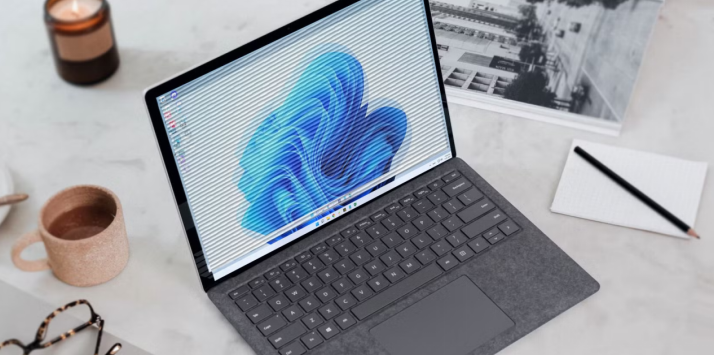
How Do I Fix a Flickering Laptop Screen?
You fix a flickering laptop screen by checking whether the cause is software or hardware, then working through driver updates, refresh rate settings, and system updates before considering a screen replacement.
A flickering laptop screen creates visual discomfort and interrupts your important daily tasks. The display updates the image unevenly and produces the shaking effect for users.
Several factors lead to this behavior in many different laptop models. Software settings and hardware components both contribute to the problem. You resolve most cases by following checks and adjustments in a logical order, targeting the most frequent causes from the very start.
How Do You Identify the Root Cause?
You determine if software or hardware causes the flicker with a simple test.
- Connect your laptop to an external monitor or TV using an HDMI cable.
- Set the display mode to extend or duplicate the screens on both devices.
- Watch the external screen closely during normal use, like document work or browsing.
Absence of flicker on the external screen shows the built-in laptop display or its cable has the problem. Flicker on both screens indicates the graphics unit or drivers need attention.
How Do You Perform a Restart and Basic Maintenance?
You start the troubleshooting with a complete restart of your laptop.
- Close every open program and select restart from the power options on screen.
- Let the device finish booting to the desktop before you launch any applications.
- Plug the charger into the laptop if it currently runs on battery power alone.
- Test the display on both power sources to check for any changes in behavior.
The restart often clears temporary conflicts in memory that produce display problems. These steps remove several common triggers before you move to other methods.
How Do You Update Graphics Drivers to Restore Stability?
Graphics drivers serve as the link between the system and screen hardware. Outdated or corrupted drivers send inconsistent signals that result in screen flickering. You update the drivers to reestablish smooth communication between all parts involved.
- Access Device Manager on Windows by right-clicking the Start button.
- Expand the Display adapters section by clicking the small arrow next to it.
- Right-click your graphics card entry and select the option to update the driver.
- Choose the automatic search option and let the system install any newer version found.
- Restart the laptop after the update finishes to apply all changes properly.
When the automatic search finds no update, download the driver from the support site. Install the correct driver from your laptop maker’s support site and restart right afterward.
How Do You Change the Display Refresh Rate?
The refresh rate controls how many times the screen redraws its image each second. When this rate does not match the signal from the graphics card, flicker appears often. You adjust the rate to remove the mismatch between output and display settings.
- Right-click the desktop and choose Display settings from the context menu.
- Scroll to Advanced display and open the refresh rate options in the menu.
- Select 60 Hz as the first test value for your screen.
- Apply the change and observe the screen during regular activities for a while.
- Switch to a higher supported rate if flicker remains and the screen stays on.
Keep the stable rate active once you confirm it stops the problem completely.
How Do You Run System Updates and Check for Conflicts?
Windows updates include fixes for many display errors in the operating system.
- Open Settings and go to Update and Security to check for new items.
- Click Check for updates and install all available items on your system.
- Restart the laptop as required and test the screen afterward to see results.
To test for software conflicts, boot the laptop into safe mode:
- Hold Shift during restart and follow the path through Troubleshoot and Startup Settings.
- Press the number key for the safe mode option to enable it.
If the flicker stops in safe mode, a regular program causes the issue. Restart normally and remove recent apps while testing the display after each change.
How Do You Manage Heat and Power Settings?
Heat inside the laptop harms the display components and cable connections over time.
- Use the laptop on a hard, flat surface to allow air circulation through vents.
- Clean the vents with compressed air cans made for electronics every few months.
- Avoid soft surfaces that block airflow under the laptop during your daily use.
Power settings also play a role:
- Review the power options in Settings under System and Power and sleep settings.
- Open Additional power settings and select the Balanced or High performance plan.
- Turn off adaptive brightness so the screen does not change with room lighting.
These changes keep performance steady during long work sessions on the laptop.
How Do You Address Hardware Issues?
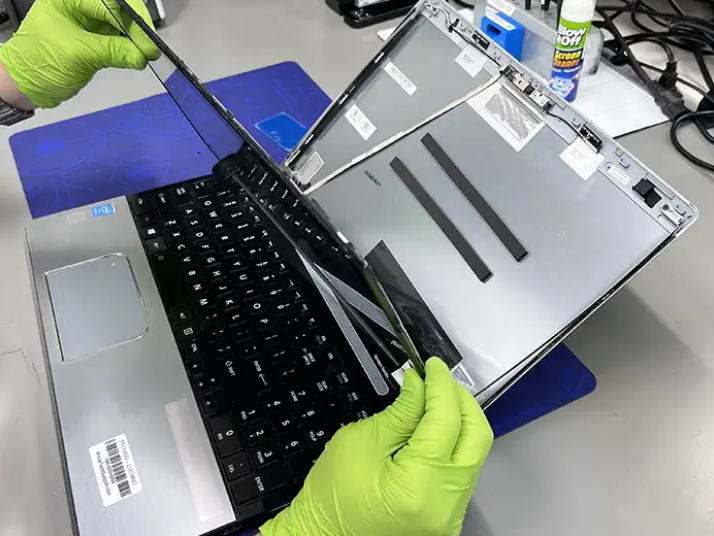
Software fixes that leave the flicker unchanged point to hardware trouble in the laptop. The video cable inside loosens from normal lid use over time with frequent use. A technician reseats the cable safely during a repair visit at the shop.
A damaged screen panel shows flicker plus lines, dead pixels, or uneven lighting. Replacement of the panel becomes the only solution in these cases of hardware failure.
When replacement is needed:
- Match the new screen to your laptop by exact size.
- Check the model number on the old panel or in system information for a match.
Screens People provides laptop LCD screens for a broad range of models. You select the correct part from their collection to restore your display fully. Professional help or online guides assist with installation if you replace it yourself.
Final Thoughts
Most flickering problems on laptop screens disappear after proper driver updates or rate changes. You save both time and money by starting with software solutions in proper order. When clear signs point to hardware failure, screen replacement returns the laptop to full function.
For quality parts, you can visit Screens People through their online store right away.
STAY IN THE LOOP
Subscribe to our free newsletter.
Leave A Comment
A 4K screen can be worth it on some 13-inch [...]
You find the exact replacement part number for your screen [...]
You can enable Night Light or blue light filters in [...]
How Do I Change My Laptop Screen Resolution? You can [...]