by Screens PeoPle
Share
by Screens PeoPle
Share

Vertical or horizontal lines on a laptop screen happen when the video signal fails to reach the pixels along that row or column. The signal must reach every pixel in the correct way for a good image. These lines appear often after physical stress or extended daily use of the laptop.
They break up the image and prevent normal use of the device. The user must find the cause before normal use of the laptop can return. Several connected parts make up the display system inside the laptop computer, and a fault in any link of the chain produces visible lines on the screen.
What Is the Difference Between Vertical and Horizontal Lines?
Vertical Lines
Vertical lines run from the top edge of the screen to the bottom edge. They form when the signal for one or more columns of pixels gets lost.
Horizontal Lines
Horizontal lines run from the left side of the screen to the right side. They form when the signal for an entire row of pixels gets lost completely.
The lines usually stay in one fixed position on the screen display area, though they can shift slightly when the user changes the angle of the screen. Some lines show bright colors while others appear as black or white stripes, and this difference helps identify the exact part of the system at fault.
How the Display Builds Each Image
The laptop builds each image through a clear sequence of steps:
- The graphics processor prepares the data for every frame before it goes out.
- A flexible cable carries the data across the hinge area to the panel.
- Driver circuits along the panel edges send the right instructions to each pixel.
A break or fault anywhere in this path leaves pixels without instructions. Those pixels light up or stay dark in a straight line on the screen.
What Are the Main Hardware Causes of Screen Lines?
Physical Damage
Physical damage triggers many line problems without any warning. A drop or direct hit cracks the screen layers or breaks internal connections. Pressure from carrying the laptop or from objects on a closed lid separates films inside the display.
Display Cable Wear
Repeated opening and closing of the lid strains the cable at the hinge area. This strain builds over 1,000 cycles until small breaks form in the wires.
- The display cable serves as the most common source of lines on screen.
- This flat ribbon holds many tiny wires that carry power and picture information, and it must bend every time the user moves the laptop lid.
- The hinge area allows only limited space for this repeated flexing, so the wires eventually crack or lose contact after long periods of use.
- A loose connection at either end stops the signal from reaching part of the panel.
- Tilting the lid often changes the lines because the cable shifts inside the hinge.
LCD Panel Faults
A fault inside the LCD panel produces lines that stay constant during lid movement. Driver chips along the edges of the panel control groups of pixels on screen. These chips stop working because of age, heat, or a defect from manufacture.
When one chip fails, the line it controls receives no signal from the system. The pixels along that line show a steady color or stay off on the display. Heat inside the laptop case shortens the working life of these driver chips.
Graphics Processor Problems
Problems with the graphics processor on the motherboard create lines in some laptops. The processor prepares every frame before the cable receives the data for display. Overheating or broken connections send incorrect information to the screen and external monitors.
When the graphics processor has problems, the lines appear on every display used.
What Other Factors Contribute to Screen Lines?
Heat inside the laptop case damages the cable and panel circuits over time. Dust blocks the fans and vents and allows temperatures to rise around key parts. Unstable power from a worn battery or charger sends uneven voltage to screen circuits.
Age affects the materials in every laptop after many years of regular daily use. The cable loses flexibility from constant bending during normal open-and-close actions, and the panel layers change with exposure to heat and regular use over time.
How Do You Identify the Source of the Lines?
Run an External Monitor Test
An external monitor test provides the first clear answer about the problem source. The user connects a second screen and checks if the image shows any lines.
- Lines that appear only on the laptop screen point to the cable or panel.
- Lines that appear on the external screen point to the graphics processor or motherboard.
Check Lid Movement and Pressure
Users tilt the lid slowly and watch for any changes in the lines on screen. Lines that flicker or shift with movement come from the cable in the laptop. Light pressure on the screen corners sometimes makes the lines fade or move briefly, which shows a loose connection at the cable or inside the panel.
Boot into BIOS or Safe Mode
Booting into the BIOS setup or safe mode removes most software variables from view. Lines that remain in these basic displays come from a hardware fault in the system. Driver updates will not clear lines that exist before the full system loads up.
How Do You Fix Lines on a Laptop Screen?
Try Software Fixes First
Software steps provide the first response in every case of line problems on screen.
- Update the display adapter driver in device manager on the laptop.
- Roll back a recent driver version when trouble starts after a change.
These actions take only minutes and sometimes remove problems that looked like hardware faults.
Reseat or Replace the Cable
When the cable shows as the cause, the technician reseats connectors inside the laptop. Unplugging and plugging the cable ends firmly fixes many loose contact problems on screen. If the cable shows wear, a matching replacement solves the problem at lower cost.
Replace the Panel
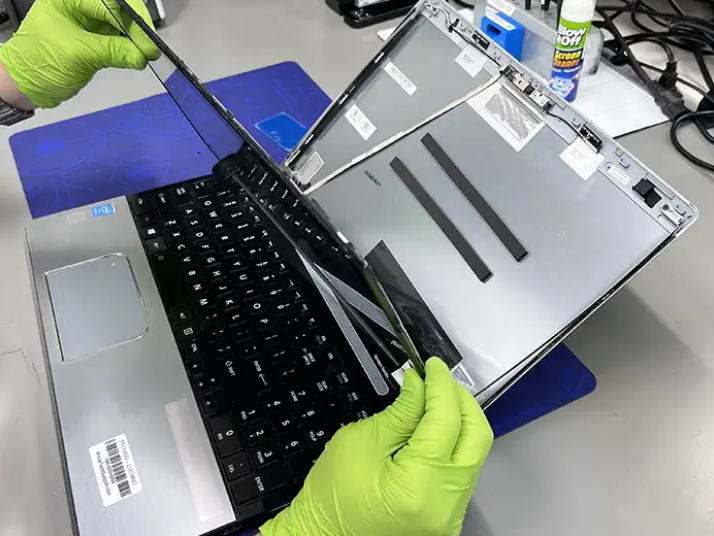
Technicians replace the panel when the lines remain steady during all movement and pressure tests. The technician removes the old panel and installs a new one with a matching model number. The process often includes a new cable to protect the fresh panel from stress.
The laptop regains a clear display after this replacement work is complete.
Address Graphics Processor Issues
Graphics processor repairs require more tools and expertise than simple screen work does. Users often connect an external monitor as the main display or replace the whole laptop. Good airflow and careful handling lower the chance of repeat damage from heat or stress.
Conclusion
Vertical and horizontal lines on a laptop screen result from faults in key parts, including the display cable, the panel, or the graphics hardware. Testing with an external monitor and checking lid movement identifies the part for repair. Software checks rule out simple fixes first before any hardware work begins.
Hardware work or replacement with matching parts brings the display back to normal operation. If the screen panel requires replacement, Screens People offers compatible laptop LCD screens. Users can select the right part from the site to restore clear visuals on their device.
STAY IN THE LOOP
Subscribe to our free newsletter.
Leave A Comment

Replacing a laptop screen yourself can be easy or difficult [...]
A 4K screen can be worth it on some 13-inch [...]
You find the exact replacement part number for your screen [...]
You can enable Night Light or blue light filters in [...]