by Screens PeoPle
Share
by Screens PeoPle
Share
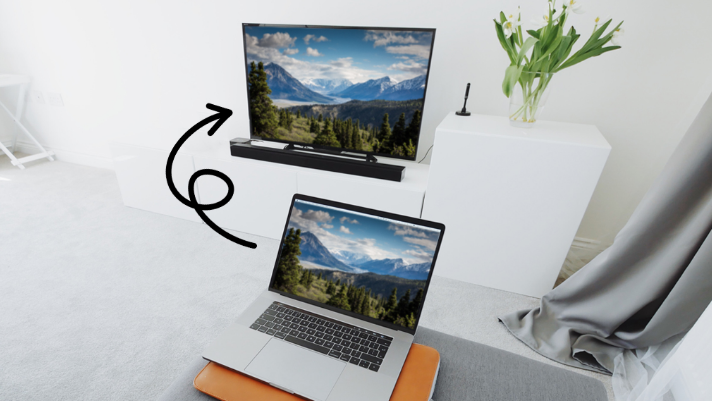
How Do I Project My Laptop Screen to a TV or Monitor?
You can project your laptop screen to a TV or monitor with a cable or wireless display feature. The most common cable choices are HDMI, USB-C, DisplayPort, and Mini DisplayPort. After connecting, choose whether to duplicate the screen, extend it, or use only the second display.
What Do You Need Before Projecting?
You need a working display port, a compatible cable, and the right input selected. A TV or monitor will not show the laptop until it receives the correct signal.
Check both ends of the connection before changing settings on the laptop. Many connection problems come from loose cables, wrong adapters, or the wrong input.
If your laptop uses USB-C, make sure the port supports video output. Some USB-C ports handle charging and data, but do not carry display signals.
How Do You Project a Windows Laptop?
Connect the cable first, then turn on the TV or monitor. On Windows, press Windows + P to open the projection menu.
Choose Duplicate if you want both screens to show the same picture. Choose Extend if you want extra space for windows and apps.
Second screen only turns off the laptop display and uses the external screen. This mode works well for presentations, desks, and media viewing.
How Do You Project a Mac Laptop?
Connect the display cable or adapter, then open System Settings and choose Displays. macOS should detect the TV or monitor after a few seconds.
Use Mirror Displays when you want the same picture on both screens. Leave mirroring off when you want a larger workspace across both displays.
You can drag display icons to match the real desk layout. This makes the mouse move naturally from one screen to the other.
How Can You Project Wirelessly?
Wireless projection works through systems like Miracast, AirPlay, or casting devices. It is useful for meetings and streaming, but it can add delay.
Use a cable when you need steady video, sharp text, or smooth mouse movement. Wireless display quality can change with distance, network load, and device support.
For movies, choose the TV or receiver as the audio output if needed. Some laptops keep sound on the laptop until you change the audio setting.
What Settings Should You Check?
After projecting, check resolution, refresh rate, scaling, and display order. These settings control clarity, smooth movement, and how large items appear.
- Use the recommended resolution for the TV or monitor.
- Set the refresh rate that the cable and display support.
- Adjust scaling if text looks too small or too large.
- Choose the correct main display for taskbars and app windows.
If the picture is cropped on a TV, look for fit or overscan settings. Most modern TVs have a screen fit mode that shows the full desktop.
What Should You Do Before a Presentation?
Test the connection before the meeting, class, or event begins. This gives you time to fix input, cable, audio, or scaling problems.
Bring the adapter that matches your laptop, not only the display in the room. Many newer laptops need USB-C adapters for HDMI or DisplayPort.
Keep a backup copy of your slides on a cloud drive or USB drive. If projection fails, another computer may still open the file quickly.
Set notifications to quiet mode so private messages do not appear on the screen. This small step keeps the presentation clean and professional.
Frequently Asked Questions
Why Does My Monitor Say No Signal?
No signal usually means the monitor is on the wrong input or cable. It can also mean the adapter does not support video output.
Can I Close My Laptop While Using a Monitor?
Yes, but change the power setting so closing the lid does nothing. Use an external keyboard and mouse if the laptop stays closed.
Why Is the External Screen Blurry?
Blurry output often comes from the wrong resolution or poor scaling. Use the recommended resolution and a cable that supports the display.
Conclusion
Projecting a laptop screen works best when the cable, display, and settings match. Use Duplicate for sharing, Extend for work, and Second screen only for desk use. If display damage makes projection your only option, Screens People can help you find replacement laptop screens for your laptop.
STAY IN THE LOOP
Subscribe to our free newsletter.
Leave A Comment
IPS, TN, and OLED screens use different display technologies with [...]

Vertical or horizontal lines on a laptop screen happen when [...]

Replacing a laptop screen yourself can be easy or difficult [...]
A 4K screen can be worth it on some 13-inch [...]