by Screens PeoPle
Share
by Screens PeoPle
Share
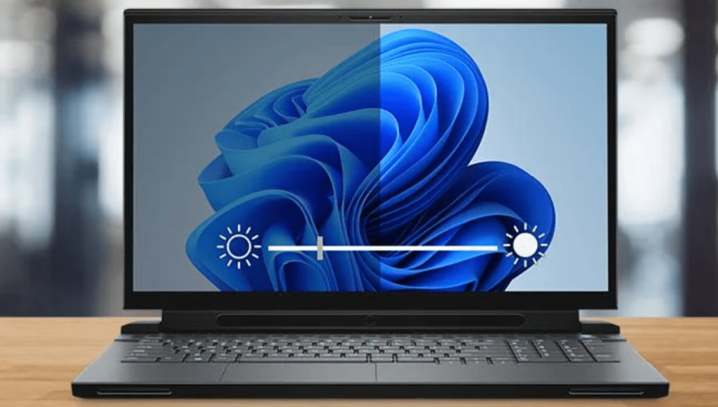
Why Does My Laptop Screen Look Dim Even at Full Brightness?
A laptop screen can look dim at full brightness because of software settings like power plans, adaptive brightness, or HDR, or because of hardware issues like a weakened backlight or damaged cable.
This problem happens because of software settings and hardware conditions in the laptop. Users find the exact cause and this leads to an effective solution fast.
This way the solution avoids unneeded part replacements for the laptop owner.
What Software Settings Reduce Apparent Brightness?
Power Plan Settings
Power plans in Windows manage energy consumption by adjusting the screen output levels. The laptop runs on battery power or connects to a wall power outlet, and many default plans apply a reduced maximum brightness when on battery power. This change helps extend the operating time for the laptop on battery.
The slider displays 100 percent yet the system limits power to backlight hardware. To fix this:
- Open the search bar and type power options into the box.
- Find the current plan with a link to change plan settings.
- Move both the battery and plugged-in brightness sliders to the highest points on the right side.
Adaptive Brightness
Advanced power settings contain the adaptive brightness option under the display category. Adaptive brightness depends on a sensor near the webcam at the top edge that reads the amount of light in the room and adjusts output.
The feature dims the screen in dark rooms even at the maximum setting. Disabling this feature in power options ends the automatic adjustments for good.
Graphics Software Controls
Graphics software from the display adapter maker provides extra brightness controls. The Intel Graphics Command Center has sliders for brightness, contrast, and gamma levels. Driver updates sometimes lower these values from their maximum position in the app.
Users launch the graphics application and set all controls to the top position.
Corrupted Display Drivers
Display drivers that get corrupted block correct signals between Windows and the screen. The driver serves as the link that carries brightness instructions to the hardware unit, and errors in the driver stop the instructions from arriving at the backlight properly.
To fix a corrupted driver:
- Open Device Manager and expand the display adapters category.
- Right-click the graphics device and choose the update driver option.
- If the update does not work, uninstall the device and restart so Windows installs a fresh driver.
HDR Settings
The HDR setting in Windows alters how the display handles color and light ranges. It activates tone mapping that is meant for high dynamic range content only, and standard programs and videos receive this processing and often appear darker than normal.
A user turns HDR off through the display page in system settings to fix it. The screen returns to its usual brightness behavior without the extra mapping step.
What Hardware Conditions Cause Low Brightness?
Backlight Wear
The backlight inside the display loses strength after long periods of regular use. LED lights sit behind the screen panel or along its edges, and these lights produce less output after several years of regular operation.
The brightness control continues to send a full signal, but the light source weakens. The reduction happens gradually over time with extended daily use of the screen.
Cable Damage
The cable that carries video and power from the main board passes through the hinge. Damage or poor contact at the connectors reduces power to the backlight LEDs. The result appears as overall dimness along with possible flickering or lines on screen.
This condition tends to develop after physical impacts or from age and normal use.
Internal Panel Faults
Internal faults sometimes appear inside the display panel assembly of modern laptops. The backlight driver circuit or LED array sections stop working correctly in some cases. Software changes cannot fix these faults because they exist within the sealed panel.
An external monitor connected to the laptop provides a clear test for the issue. Normal brightness on the external screen shows the built-in display has a problem.
How Do You Diagnose and Apply Fixes?
Run Comparison Tests
Diagnosis starts with a comparison test between the built-in screen and an external display.
- Connect through HDMI or USB-C to reveal if the issue stays with the laptop screen.
- Persistent dimness on the internal display points to hardware or the connecting cable.
- Enter the BIOS setup during startup for another check, since BIOS bypasses most Windows software layers during the test.
- Continued low brightness in that environment also indicates a hardware cause.
Follow Software Corrections in Order
Software corrections follow a clear order to get the best results:
- Make power plan changes first.
- Update graphics drivers right after the power plan adjustments.
- Test brightness with the slider and keyboard function keys after every change.
- Restart between steps to ensure the changes take full effect.
The display troubleshooter in system settings can locate certain conflicts without any effort.
Consider Hardware Repair
Hardware work usually involves screen replacement because LED backlights form part of the panel. Separate backlight repair occurs very rarely in modern laptop displays. A technician opens the device and removes the old panel from the laptop.
The new panel must match the original resolution, size, and connector layout for operation.
Final Considerations for Resolution
Dimness at the highest brightness setting disrupts daily laptop tasks for many users. Software changes fix most instances through power plan edits, driver maintenance, and mode changes. Hardware problems that remain after these steps require replacement of the display panel.
Users facing a hardware fault in the screen can obtain suitable replacement panels from Screens People. The company maintains an inventory that covers a broad range of laptop models. Users can visit Screens People to see their full laptop LCD screens catalog.
STAY IN THE LOOP
Subscribe to our free newsletter.
Leave A Comment

Vertical or horizontal lines on a laptop screen happen when [...]

Replacing a laptop screen yourself can be easy or difficult [...]
A 4K screen can be worth it on some 13-inch [...]
You find the exact replacement part number for your screen [...]