by Screens PeoPle
Share
by Screens PeoPle
Share
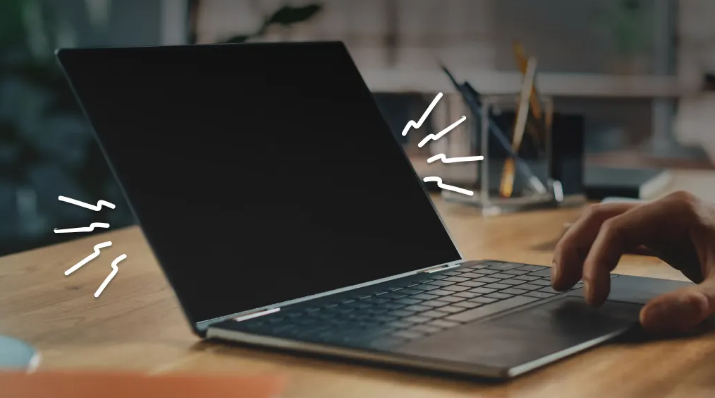
Why Is My Laptop Screen Black but the Keyboard Lights Are On?
A black screen with active keyboard lights usually points to a failure in the screen, its connection cable, or the backlight system rather than a dead battery or power supply.
The laptop powers up enough to light the keyboard but shows nothing on screen. This situation creates a specific type of hardware problem for the laptop user.
The machine receives power and runs its basic functions in a normal daily way. The display stays completely dark with no image or light coming through it. This symptom usually points to a failure in the screen, its connection point, or the graphics output.
Knowing the common causes helps a user diagnose the issue and pick a repair.
What Causes a Black Screen with Working Keyboard Lights?
Display Panel Failure
The display panel stops working in many cases and causes a black screen. Laptop screens use layers of liquid crystals and backlighting to create clear images, and a fault in one layer or the backlight system stops any picture from appearing.
Electricity still reaches the rest of the laptop during this kind of failure. Physical damage from drops or pressure on the closed lid leads to failure, and age also plays a role because screens degrade after several years of daily use.
Video Cable Damage
The video cable that carries the signal creates the same symptom when it fails. This cable runs through the hinge area and flexes every time the lid opens. Repeated movement eventually frays the wires inside or loosens the connectors at both ends.
The keyboard lights stay on because power distribution continues normally, but the screen receives no data and therefore stays completely black.
Backlight Failure
Backlight failure leaves the screen dark in a similar way. The backlight illuminates the screen from behind so users can see content clearly, and modern laptops use small LED lights to perform this task. When the backlight or its control circuit fails, the screen stays completely black.
A simple test confirms this cause without any special tools:
- Shine a flashlight at the screen at an angle in a dark room.
- A faint outline of the desktop becomes visible if the backlight has failed.
- The panel itself still works in this particular situation.
Graphics Hardware Problems
Graphics hardware problems create black screens on many laptops in regular daily use. The graphics processor processes all visual information before sending it to the display screen. Overheating or hardware failure in this component prevents output from reaching the screen fully.
Testing with an external monitor helps identify if the graphics system works at all.
How Do You Diagnose the Cause of the Problem?
Run an External Monitor Test
Start the diagnosis with an external monitor test to find the real cause.
- Connect a second screen through the HDMI or VGA port on the laptop.
- Turn on the laptop and wait for it to boot up completely.
- Press the display toggle key combination on the keyboard, usually the Fn key plus a function key with a monitor icon.
If the external screen shows the desktop, then the built-in display or its cable has the problem. This result rules out a complete graphics or motherboard failure in the laptop device.
Reset the Laptop Power System
After the external test, reset the laptop power system in the proper way.
- Turn the laptop off completely before starting the power reset process.
- Disconnect the power adapter from the laptop and remove the battery if possible.
- Press and hold the power button for a full minute to clear residual electricity from the circuits inside the laptop body.
- Reinstall the battery and reconnect the adapter to the laptop.
- Start the laptop again after the reset process has been completed fully and safely.
This procedure clears many temporary power management errors in the laptop system.
Adjust Brightness and Inspect the Display Cable
Adjust the brightness even without a visible screen on the laptop display. Press the brightness increase key several times with short pauses between each press. Some laptops respond to these commands and the screen brightens after a short delay.
Users who are comfortable with basic hardware work can inspect the display cable:
- Power off the laptop and remove the screws from the bottom cover carefully.
- Locate the cable connector on the motherboard near the screen hinge area.
- Gently disconnect and reconnect the cable to ensure a solid and firm connection point.
- Check the cable for obvious bends or breaks where it passes the hinge.
- Reassemble the laptop and test the display before deciding on any further repairs.
When the external monitor shows nothing as well, the graphics processor or main board likely needs attention from a trained professional. Professional diagnosis at a repair shop provides the clearest answer in this case.
What Should You Do When Basic Steps Do Not Work?
If none of the steps restore the display, then replacement becomes necessary for the user. The user usually needs to replace the screen or other related components soon. A new display panel often costs less than a full laptop and returns the device to full use after the replacement.
Professional installation ensures the cable routes correctly and matches the exact model perfectly.
- A black screen with active keyboard lights comes from the display system or graphics output.
- Careful testing with an external monitor separates screen problems from any deeper hardware faults.
- Simple resets and cable checks fix many cases at no extra cost.
- When replacement becomes necessary, quality parts make the repair last much longer and extend the useful life of the laptop for many years.
Where to Get a Replacement Screen
If the screen on your laptop needs replacement, consider Screens People right away. Screens People carries a large selection of compatible LCD panels for many popular models.
Explore their inventory and order the correct part to restore your laptop.
STAY IN THE LOOP
Subscribe to our free newsletter.
Leave A Comment

Vertical or horizontal lines on a laptop screen happen when [...]

Replacing a laptop screen yourself can be easy or difficult [...]
A 4K screen can be worth it on some 13-inch [...]
You find the exact replacement part number for your screen [...]